Reel
SIDE: Key Features Installation Quick Start Checklist Theme Settings Full-Screen Reels Feed Pull to Refresh Navigation Lightbox Gallery Optional Pages Pagination Updating The Theme Troubleshooting / FAQ Credits and Support
Documentation
Reel is a full-screen, swipe-driven Ghost theme inspired by short-video feed apps every post takes the whole screen, and one swipe or scroll takes you to the next. This page covers everything you need to set it up and make it your own.
Key Features
- Full-screen vertical feed with a custom, transform-driven swipe system — a swipe can never travel more than exactly one post
- Custom pull-to-refresh gesture, rebuilt from scratch for the fixed-layout feed
- Site-wide toggle between full hero-image post headers and a clean, text-first layout
- Accent color wired directly to Ghost's own Design & branding setting — no code required
- Automatic paid-member lock badge on gated posts
- Floating "Scan on mobile" QR code, self-hosted, encodes whatever page you're currently viewing
- Desktop dropdown navigation with nested groups, built from the same links as the mobile menu
- Click-to-expand image lightbox with gallery next/previous navigation
- Built-in Tags and Authors directory page templates
- Pagination — 6 posts per page on archive and tag views
Installation
- Download the theme .zip file.
- In Ghost Admin, go to Settings → Design and branding → Change theme.
- Click Upload theme and select the .zip file.
- Once it's validated, click Activate.
Note: If the upload is rejected, make sure the .zip contains the theme files directly at the top level, not inside an extra wrapper folder.
Quick Start Checklist
Right after activating, do these in order:
- Pick your Accent color under Settings → Design and branding → Brand.
- Decide whether posts show a hero image or a plain text header — see Post Image Style (under Theme Settings).
- Choose which elements appear on each feed card — see Feed Card Display (under Theme Settings).
- Set up your Navigation with grouping prefixes if you want dropdown menus — see Navigation.
- Create the optional Tags and Authors pages if you want them — see Optional Pages.
Theme Settings
All of these live under Settings → Design and branding → Brand and theme.
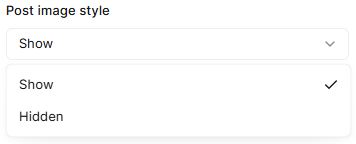
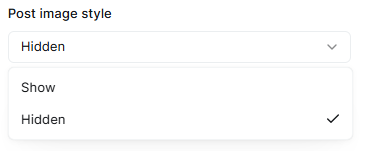
Post Image Style
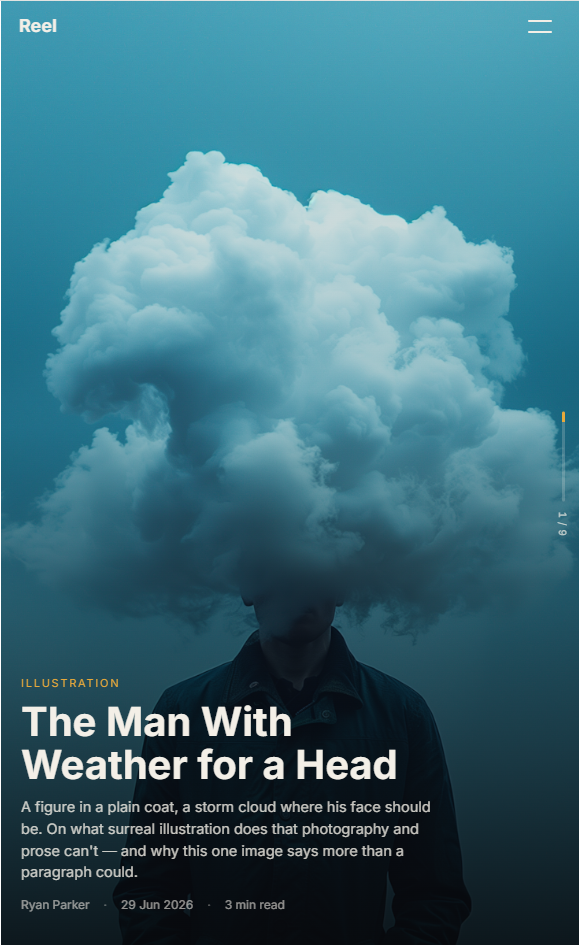
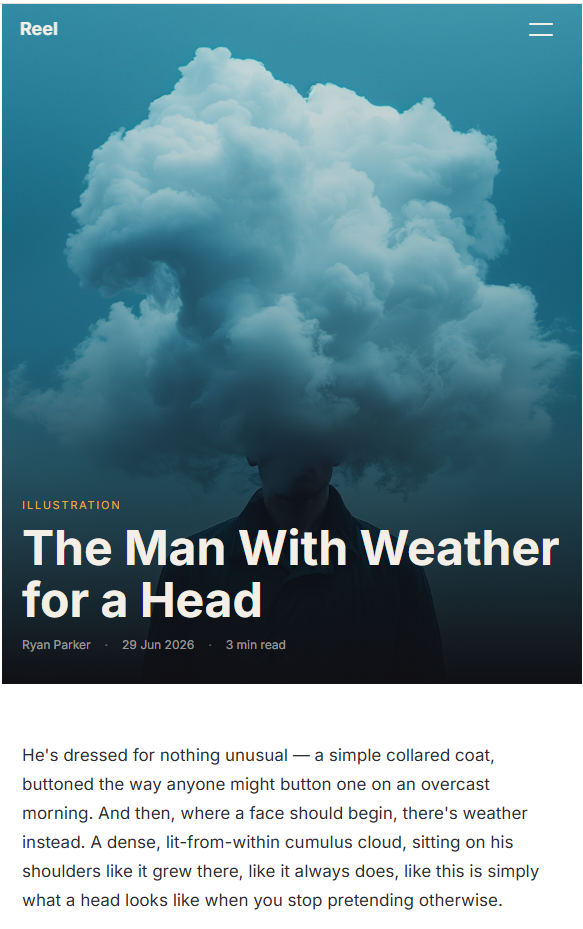
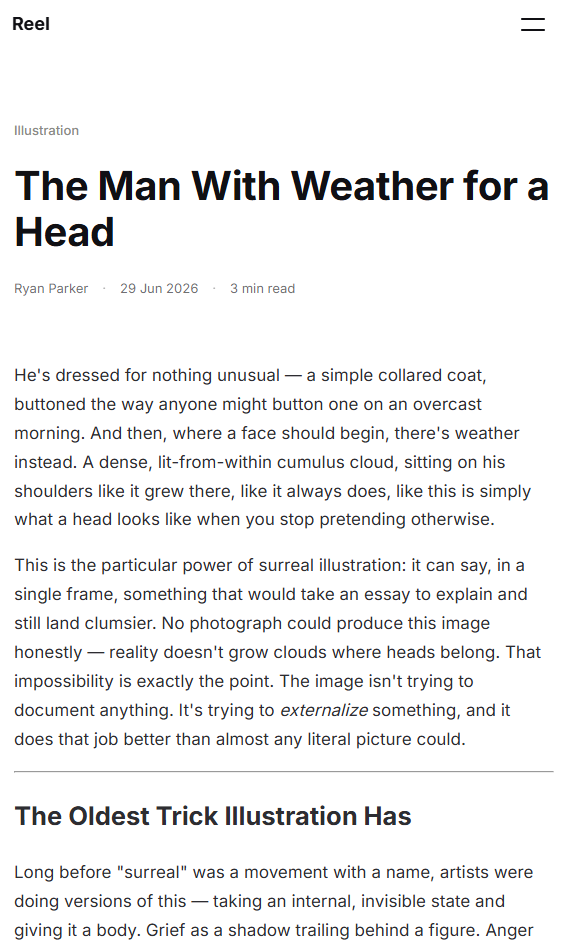
A site-wide setting controls whether posts use a full hero image header or a plain, text-first layout.
- Show – the post's featured image displays as a full-width hero header.
- Hidden – no photo; the post header shows only tag, title, and byline on a plain background.
Note: Ghost Pages (About, Features, etc.) always use the plain header, regardless of this setting — it only affects regular Posts.
You can also override this per individual post: open the post in the Ghost editor, click Post settings, and under Template choose Hidden to force the plain header on that one post, even if the site-wide setting is Show.
Accent Color
Reel's highlight color — tags, the progress rail, links, and other accents — is wired directly to Ghost's own Accent Color setting, not a separate theme option.
Ghost Admin → Settings → Design and branding → Brand → Accent color
Change it once here and the whole theme updates automatically — no code required.
Paid Member Lock
If Members are enabled on your site, set any post's access to Paid-members-only in Ghost Admin (Post settings → Access) and a small lock icon appears automatically — on that post's feed card and on its own page. No manual tagging or extra fields needed.
Floating "Scan on Mobile"
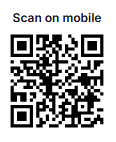
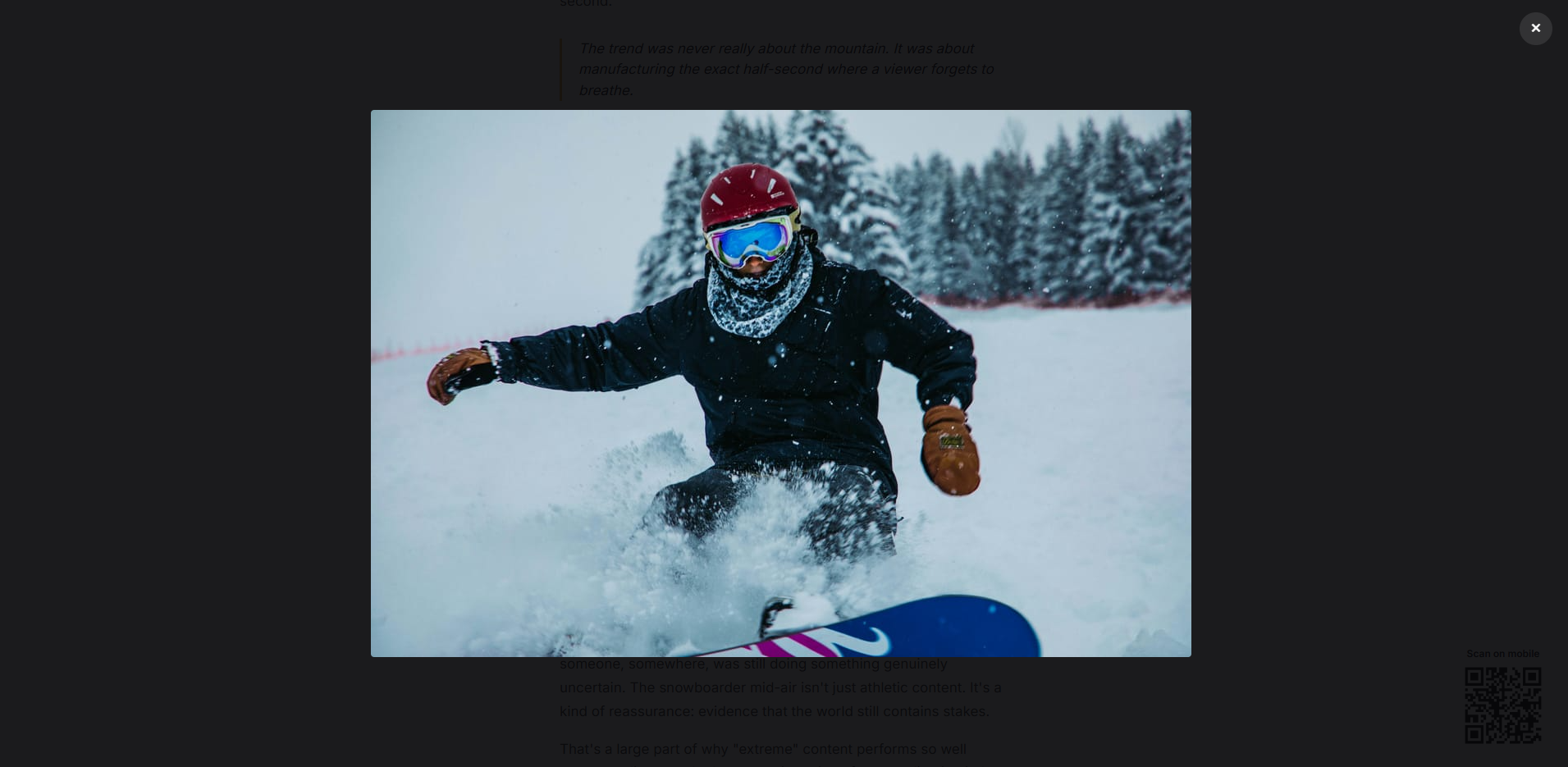
On desktop screens, Reel shows a small QR widget fixed to the corner of the page. It encodes whatever page you're currently viewing — not just the homepage — so scanning it opens that exact same page on your phone. It's self-hosted and hidden on mobile/tablet screens where it wouldn't be useful.
Feed Card Display
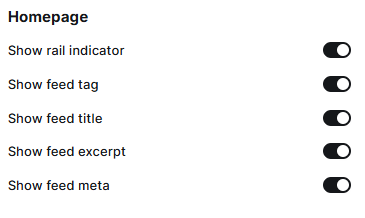
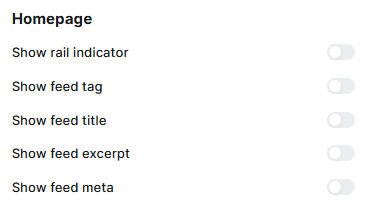
Toggle which elements appear on every feed card:
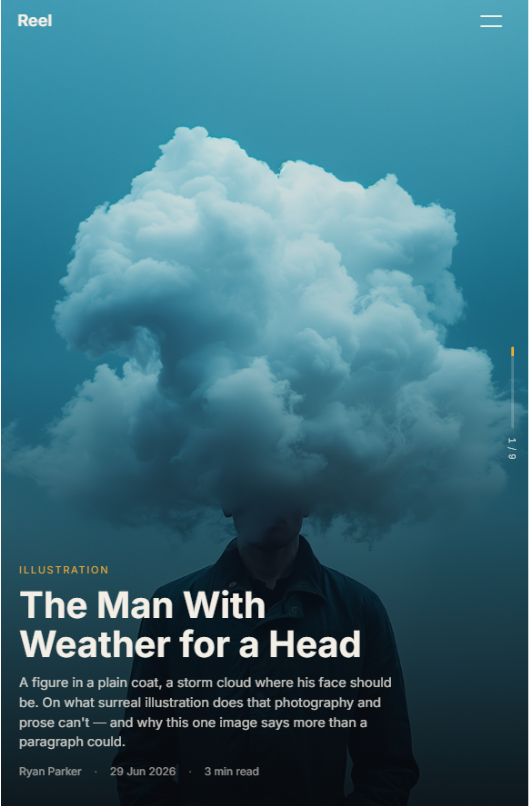
- Show rail indicator – the vertical progress indicator ("3 / 12") on the side of the feed.
- Show feed tag – the post's primary tag, shown as a small label.
- Show feed title – the post title.
- Show feed excerpt – a short excerpt (about 18 words).
- Show feed meta – author name, publish date, and reading time. When this is off, the paid-member lock badge (if any) moves to its own small badge in the corner instead of sitting next to the meta text.
Full Screen Reels Feed
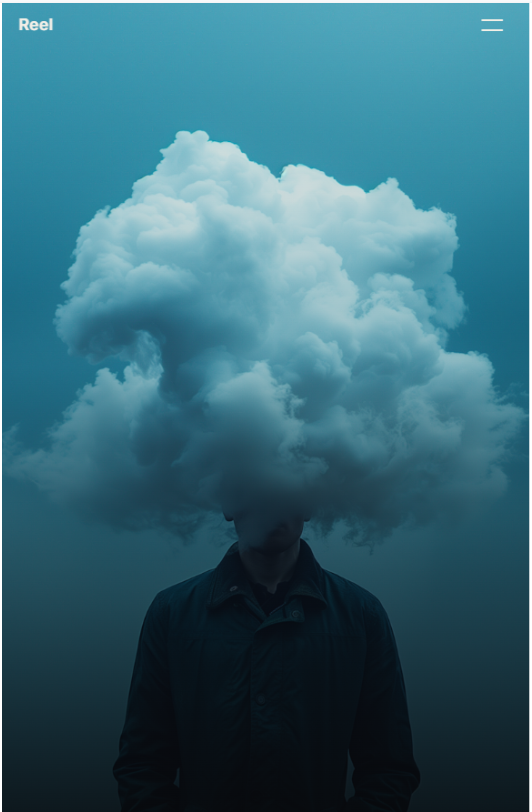
The homepage isn't a list — it's a feed. Every post takes the whole screen, and one swipe (mobile) or scroll (desktop) takes you to the next. This is built with a custom transform-driven paging system, not native browser scroll, so a swipe can never travel more than exactly one post and there's no bounce-back or accidental skipping.
On desktop, up/down arrow buttons appear on the side of the screen for keyboard-free browsing between posts.
Pull to Refresh
Pull down on the very first post in the feed and a small indicator appears. Pull far enough and the feed refreshes — a native-app-style gesture, rebuilt from scratch since the feed's fixed, full-screen layout means the browser's own pull-to-refresh has nothing to grab onto.
Navigation
Set up navigation under Settings → Navigation. Reel builds header dropdowns and the mobile menu from a single flat list using prefixes in the Label field — no code required.
Special prefixes:
#– Starts a dropdown group. Everything after it becomes a dropdown, until a plain (non-) item appears.-– A sub-item belonging to whichever#group is currently open.+– The last sub-item in the group, closing it.%– Starts a "more" group, shown with a three-dot icon instead of a label.@– A sub-item belonging to the currently open%group.$– The last sub-item in the%group, closing it.- (no prefix) – A normal top-level link.
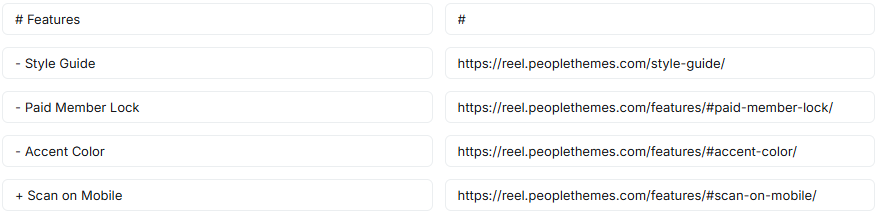
This creates a "Features" dropdown containing three links.
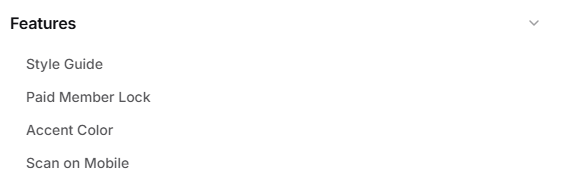
Making a group header non-clickable
By default, a # group header uses whatever URL you enter as its own link — set the URL to # if you want it to only open the dropdown instead of navigating anywhere.
Lightbox Gallery
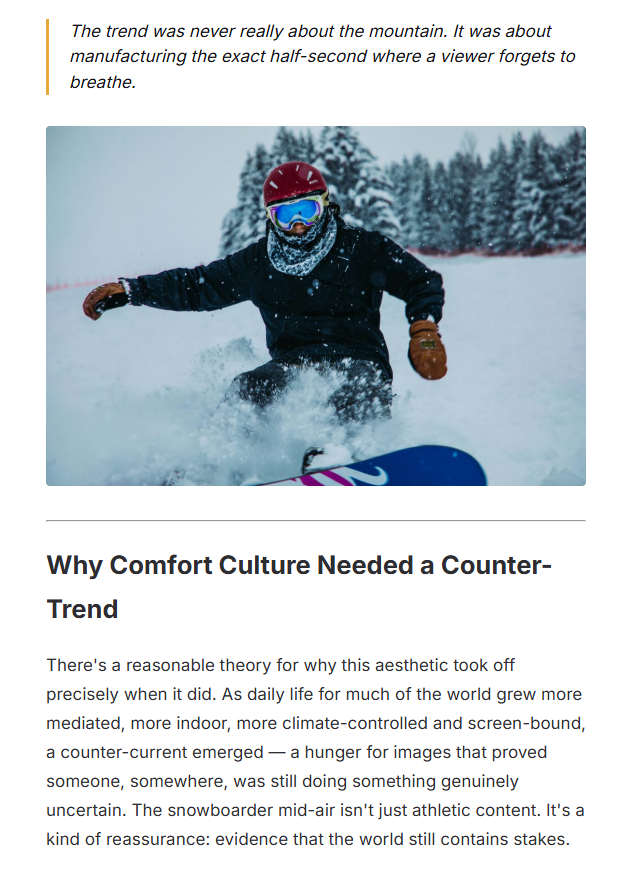
Any image inside a post's content automatically opens in a full-screen lightbox when clicked — with a close button and next/previous navigation if the image is part of a Ghost gallery card. No setup needed.
Optional Pages
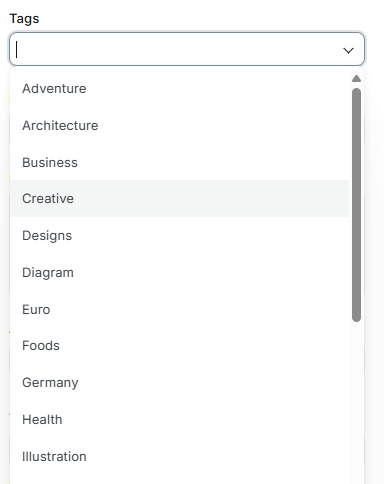
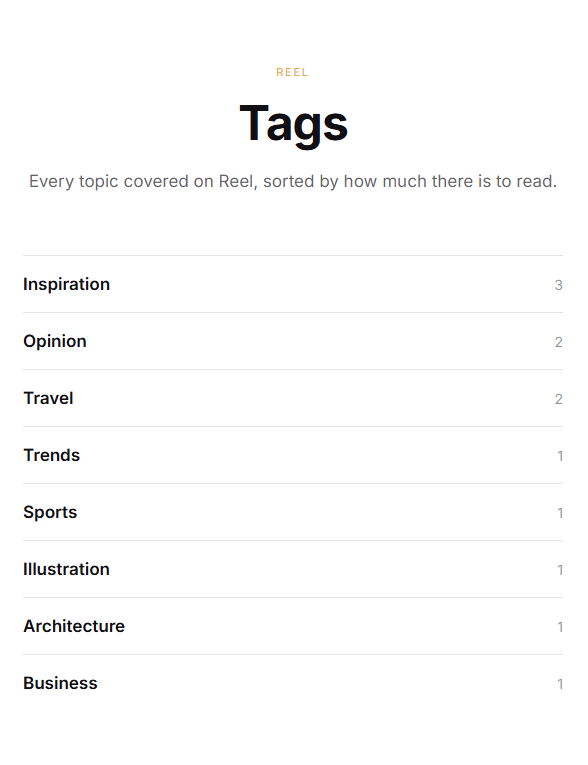
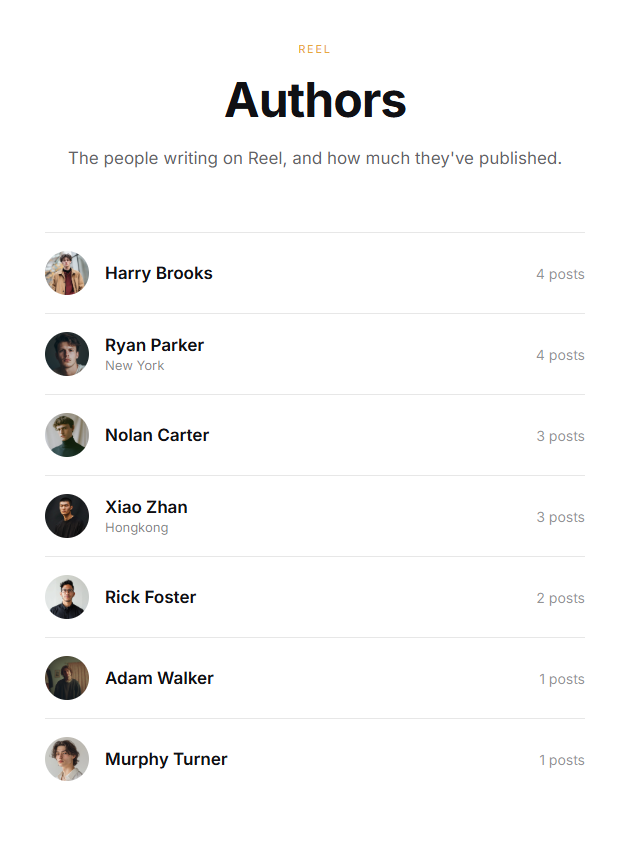
Reel ships with two custom page templates: Tags and Authors.
- Create a new Page in Ghost Admin and give it a title.
- Open the page's settings sidebar and look for the Template dropdown.
- Select Tags or Authors from the list.
- Publish the page.
The page title and URL slug can be anything you like — what determines the layout is the Template selected in step 3.
- Tags page – lists every tag with at least one post, sorted from most to least posts.
- Authors page – lists every author with at least one post, showing avatar, name, location (if set), and post count.
Pagination
Archive and tag/author list pages show 6 posts per page by default.
Updating The Theme
All of your settings (accent color, navigation, feed card toggles) are stored in Ghost's database — not in the theme files. This means you can safely upload a new version of the theme .zip at any time without losing your configuration. Always back up any direct code edits before updating, since those will be overwritten.
Troubleshooting / FAQ
My navigation dropdown isn't showing.
Double-check the Label field starts with # (no extra space before the text), and that any item meant to be a sub-item doesn't accidentally start with - before the # item opens the group.
Q: My navigation dropdown isn't showing
A: Double-check the Label field starts with # (no extra space before the text), and that any item meant to be a sub-item doesn't accidentally start with - before the # item opens the group.
Q: The QR code isn't showing up
A: It's desktop-only by design — it's intentionally hidden on mobile and tablet.
Q: A specific post won't switch to the plain header even though the site-wide setting is "Show"
A: Check that post's own Template setting in Post settings — if it's set to Hidden, it overrides the site-wide Post Image Style setting for that post only.
Q: The lock icon isn't showing on a paid post
A: Make sure Members are enabled (Settings → Membership) and the post's Access is set to Paid-members-only, not Members-only or Public.
Q: My Tags or Authors page is blank
A: Make sure you selected the correct Template (Tags or Authors) in the page's settings sidebar, and that the page is Published.
Updates
Release First Version xx-xx 2026
Credits and Support
- Theme: Reel, by People Themes
- Usage: Commercial and personal use allowed
- License: Subject to People Themes licensing terms
- Support: support@peoplethemes.com
- Terms: Terms of Service
For full licensing, usage, and redistribution terms, please refer to our Terms of Service.
People Themes
About
We're a small studio focused entirely on Ghost — designing themes that are clean, fast, and built to last. From layout to typography, every detail is considered so you can focus on your content. We believe good design should feel unique, without compromising function.
Support
Stuck on something, or just have a question about this theme? Drop us a message — we usually reply within 24 hours.
People Themes — Uncommon Ghost themes.